
Step-by-Step Guide: How to Create a VM in Proxmox VE 9
- Last updated: Sep 10, 2025

As a reminder, Proxmox Virtual Environment is a virtualization platform that lets you create Virtual Machines in container-based or in full virtualization. (If you missed the installation tutorial, it's right here).
The difference between these two technologies is that container-based will share their kernel with the Proxmox VE and will therefore generally require fewer resources than full virtualization and delivers better performance. As Proxmox is based on Linux, this mode is, of course, only available for Linux VMs. Full virtualization, on the other hand, lets you create virtual machines compatible with Windows and UNIX, and works like VMware ESXi or Hyper-V.
I will show here how to create both.
Creating a Debian Linux Container
Container Template
As containers work with templates, we first need to identify the storage spaces that are configured to host the container template.
- In my case, only the local storage is configured to host container templates:

- Go to one of the storage locations previously identified as supporting container templates, then click CT Templates > Templates:

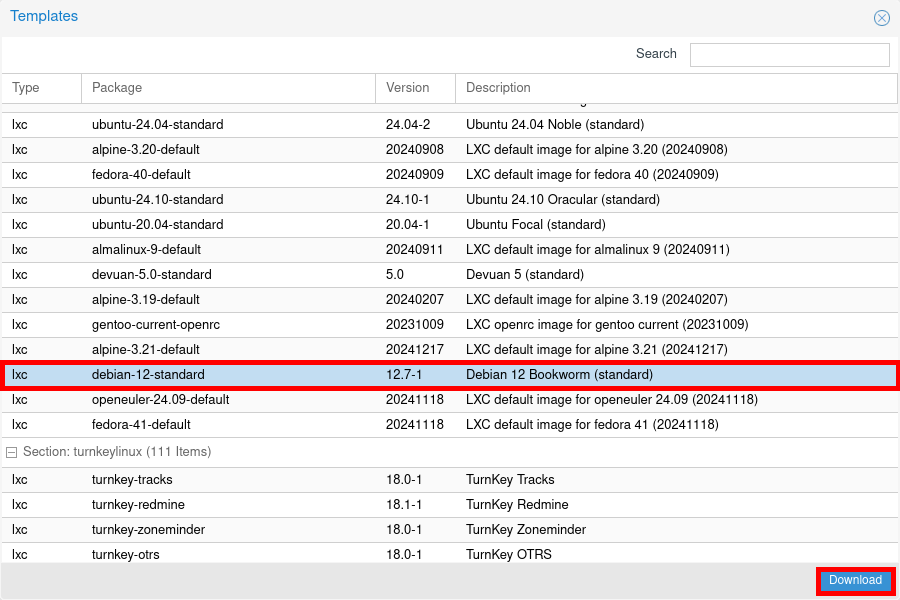
- From the Templates list, select the Linux distribution you want to use, then click Download. Here is an example with Debian 12:
- Once the download is complete, the template should appear in the CT Templates list:

Create an LXC VM
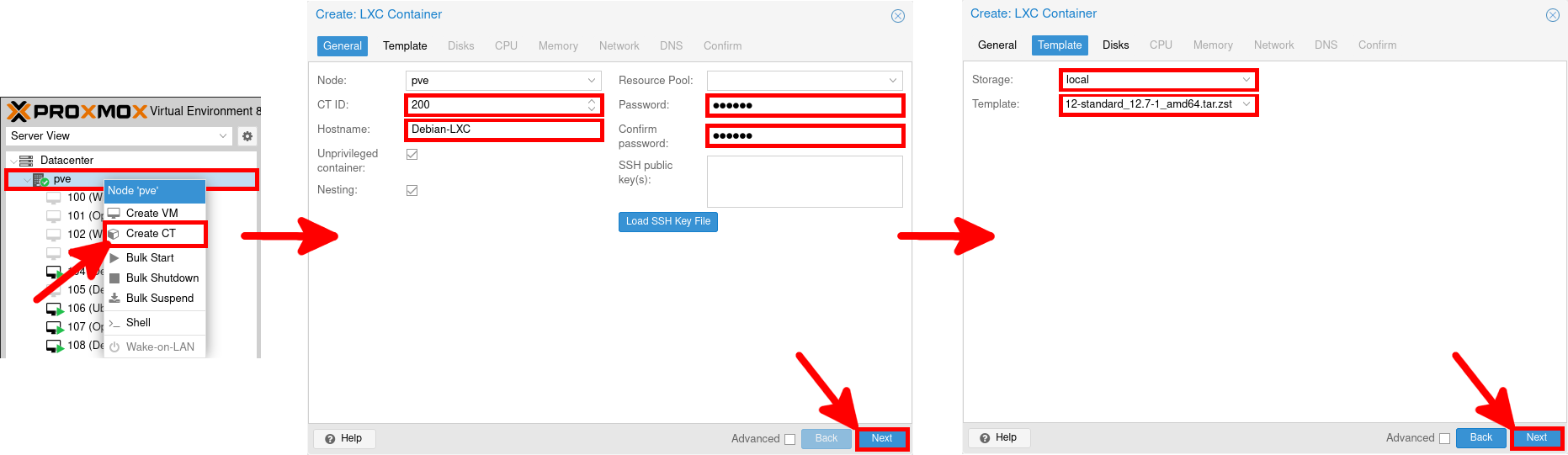
- Right-click on your hypervisor and select Create CT. Enter a name for the container, set a password, then choose the previously downloaded template:
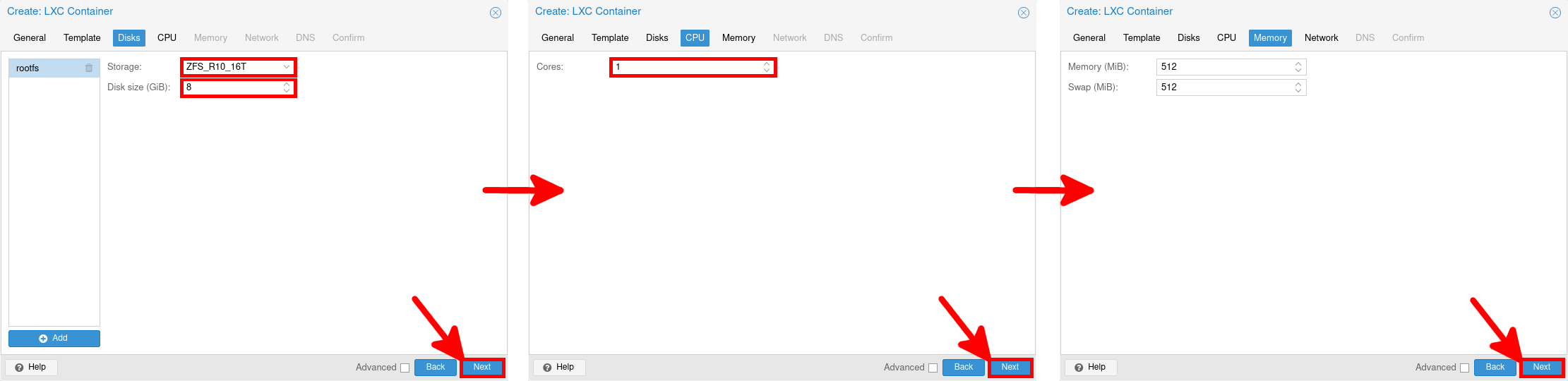
- Select the storage for the container disk, then define the number of CPU cores and the amount of memory:
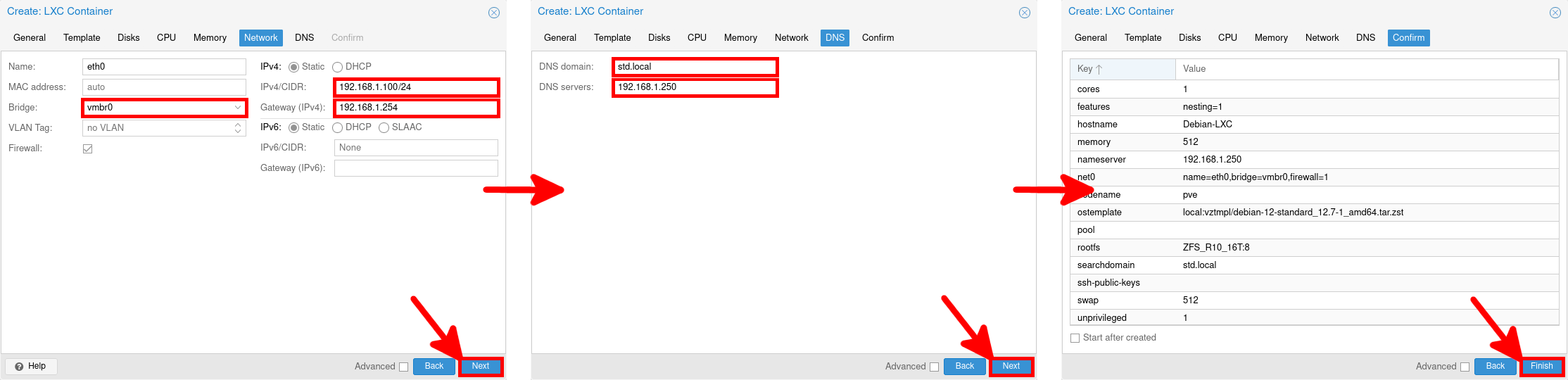
- Select the network bridge, configure the IP address and DNS settings, then review the summary and click Finish to create the container:
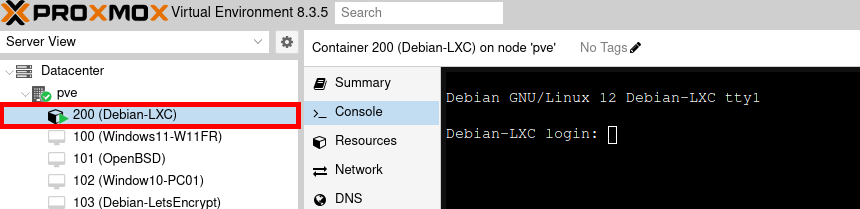
- After a few moments, the container should appear in the Proxmox VE inventory and be ready to use from the Console tab:
Full Virtualization
Upload the ISO
Before we can consider installing a virtual machine, we first need to download the ISO media to our Proxmox VE.
- As with containers, open the Storage menu to identify which storage location can host ISO images:

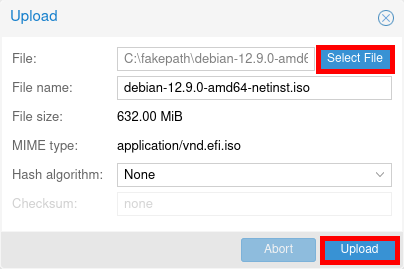
- Go to one of the previously identified storage locations, open the ISO Images section, then click Upload:

- Upload each ISO image required for the operating systems you want to install. For Windows virtual machines, also upload the VirtIO drivers ISO, which will be needed during and after installation:
- Once the uploads are complete, the ISO images should appear in the ISO Images section. In this example, the storage contains Windows Server, Debian, and VirtIO drivers ISO files:

Windows
Creating a Windows Virtual Machine
Now that we have uploaded the ISO images, let's start creating virtual machines, beginning with Windows.
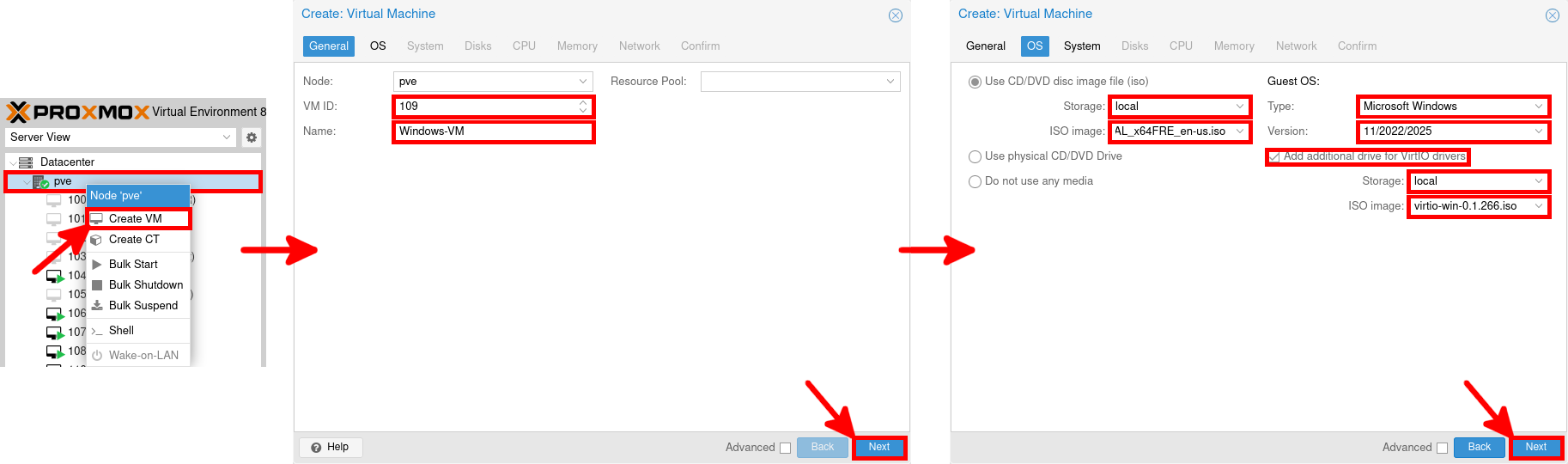
- Right-click on the hypervisor and select Create VM. In the General tab, enter a name for the virtual machine and click Next. In the OS tab, select the previously uploaded Windows ISO image, set the Guest OS type to Microsoft Windows, then enable Add additional drive for VirtIO drivers and select the uploaded VirtIO ISO:
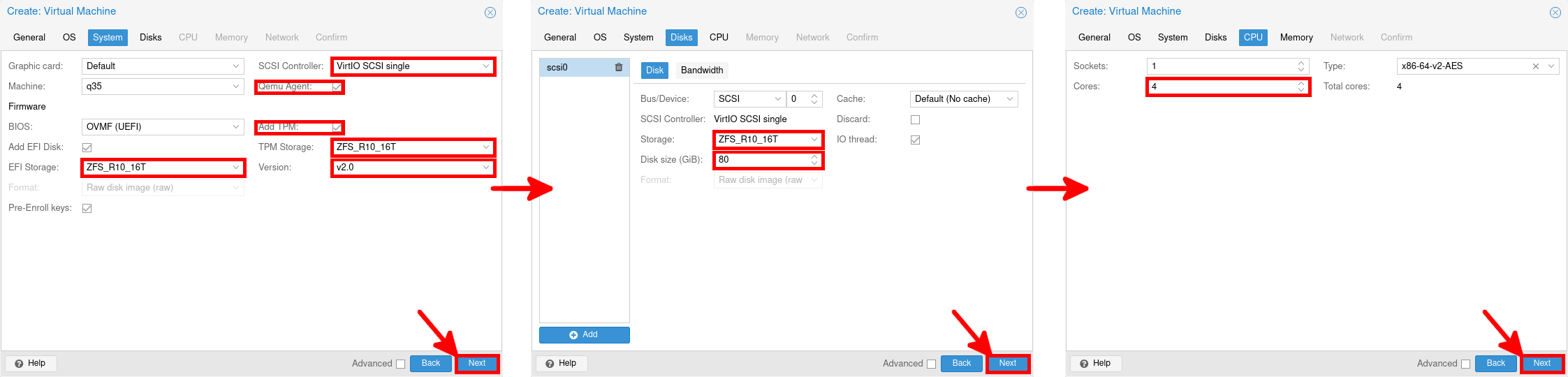
- In the System tab, enable the QEMU Agent and TPM, then choose the storage location for the EFI disk and TPM state. In the Disks tab, select the target storage and set the virtual disk size. Finally, adjust the CPU settings if needed:
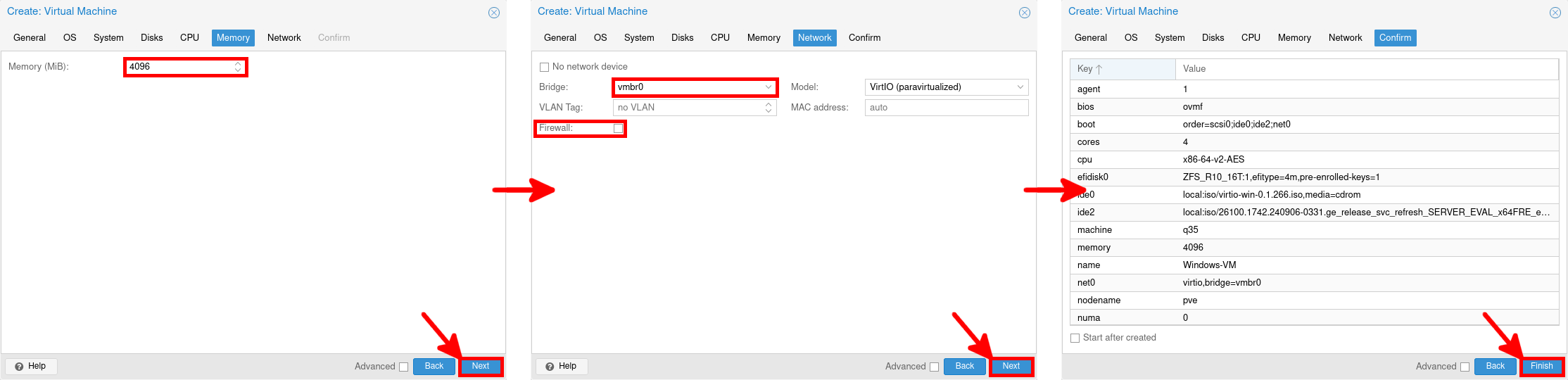
- In the Memory tab, allocate the amount of RAM you want to assign to the virtual machine. In the Network tab, select the target bridge and keep the VirtIO paravirtualized model for good performance. Finally, review the configuration summary and click Finish to create the VM:
Install Windows
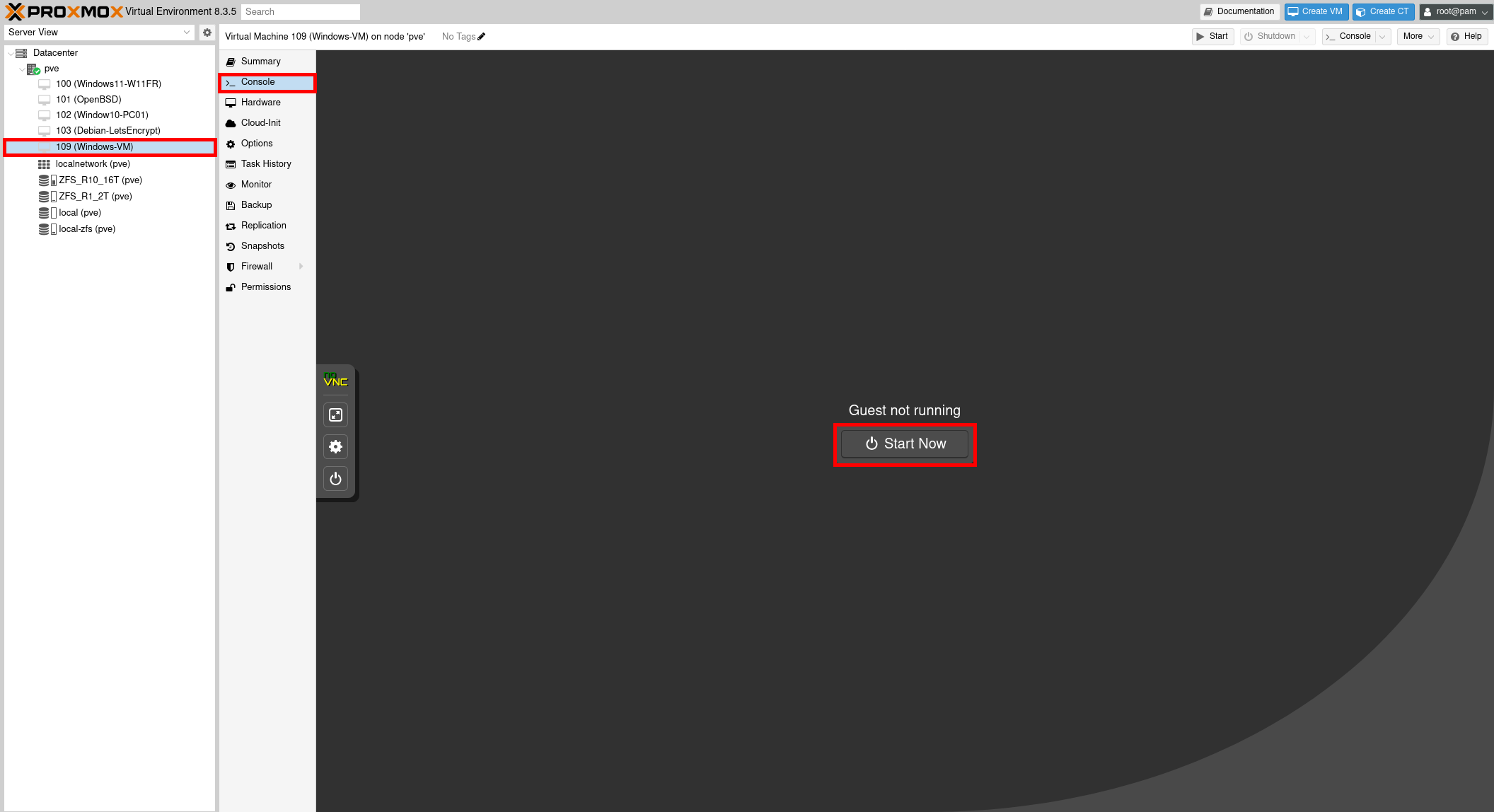
- Once the virtual machine has been created, open the Console tab and click Start Now to power it on:
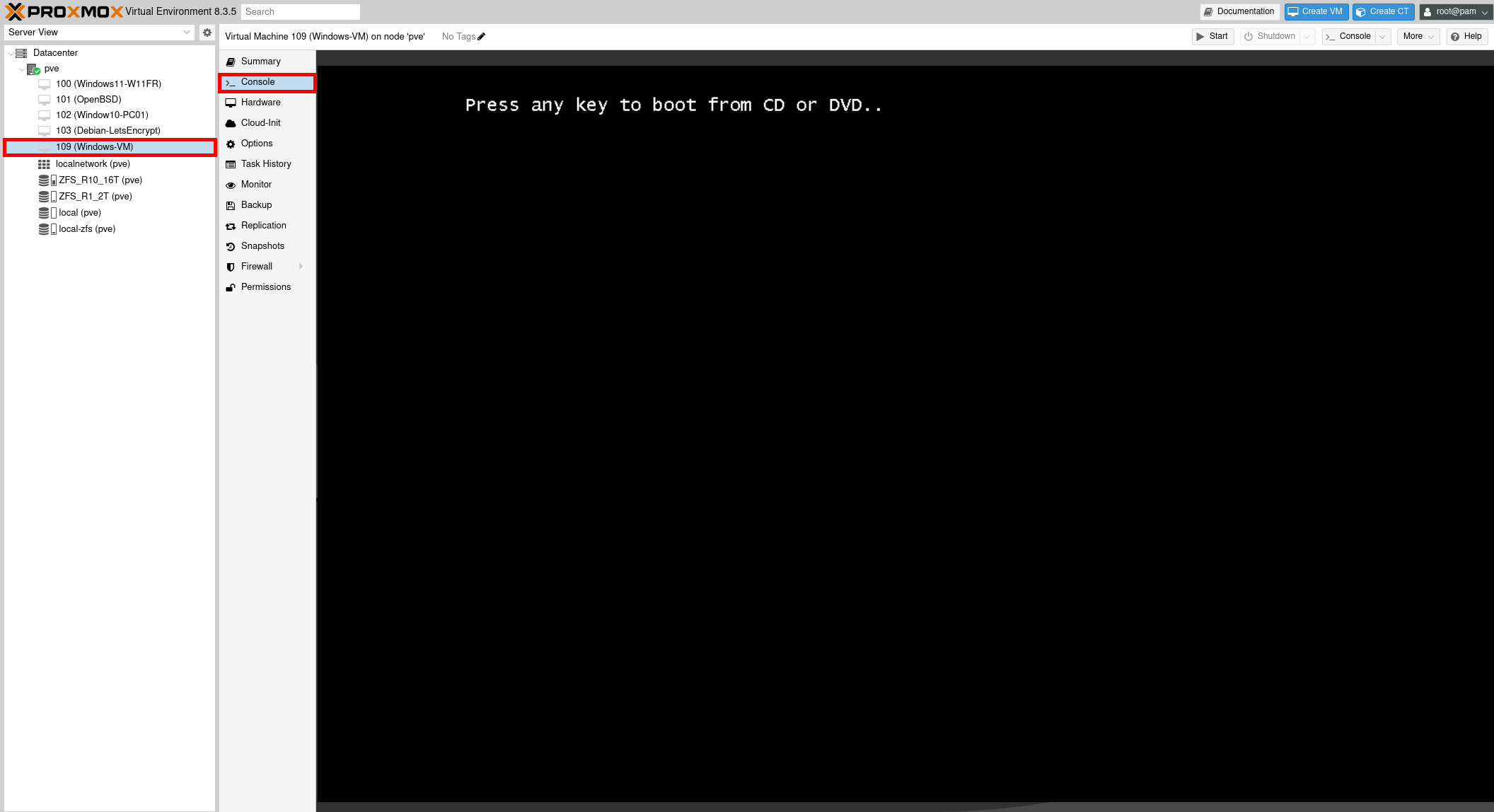
- When the VM starts, press a key when prompted to boot from the attached Windows ISO and launch the installation process:
- At the Select location to install Windows Server step, no disk is detected yet. Click Load Driver to load the VirtIO storage driver:

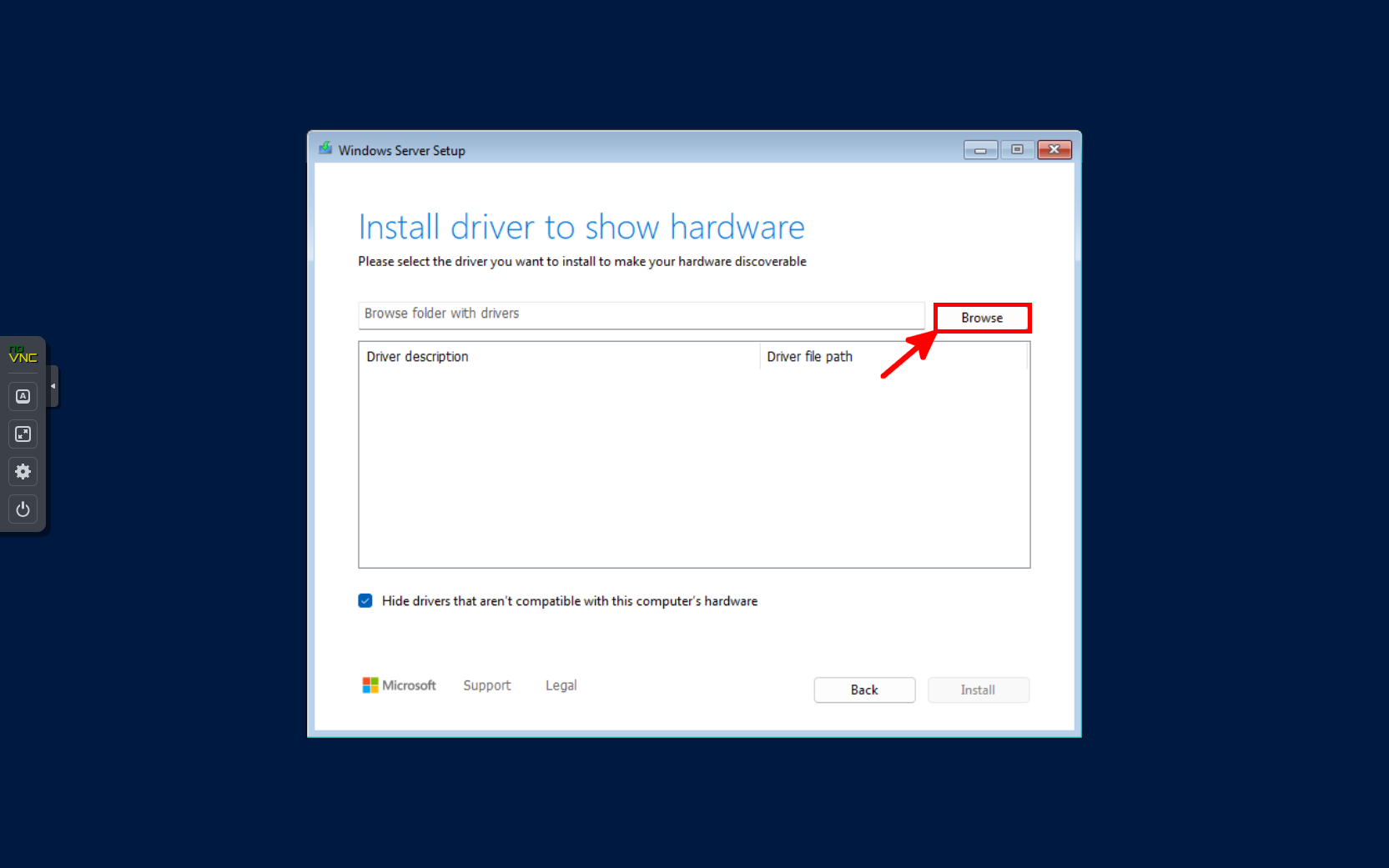
- Click Browse to select the driver folder from the attached VirtIO drivers ISO:
- Select the
vioscsi\<WINDOWS_VERSION>\amd64folder from the attached VirtIO drivers ISO, then click OK:

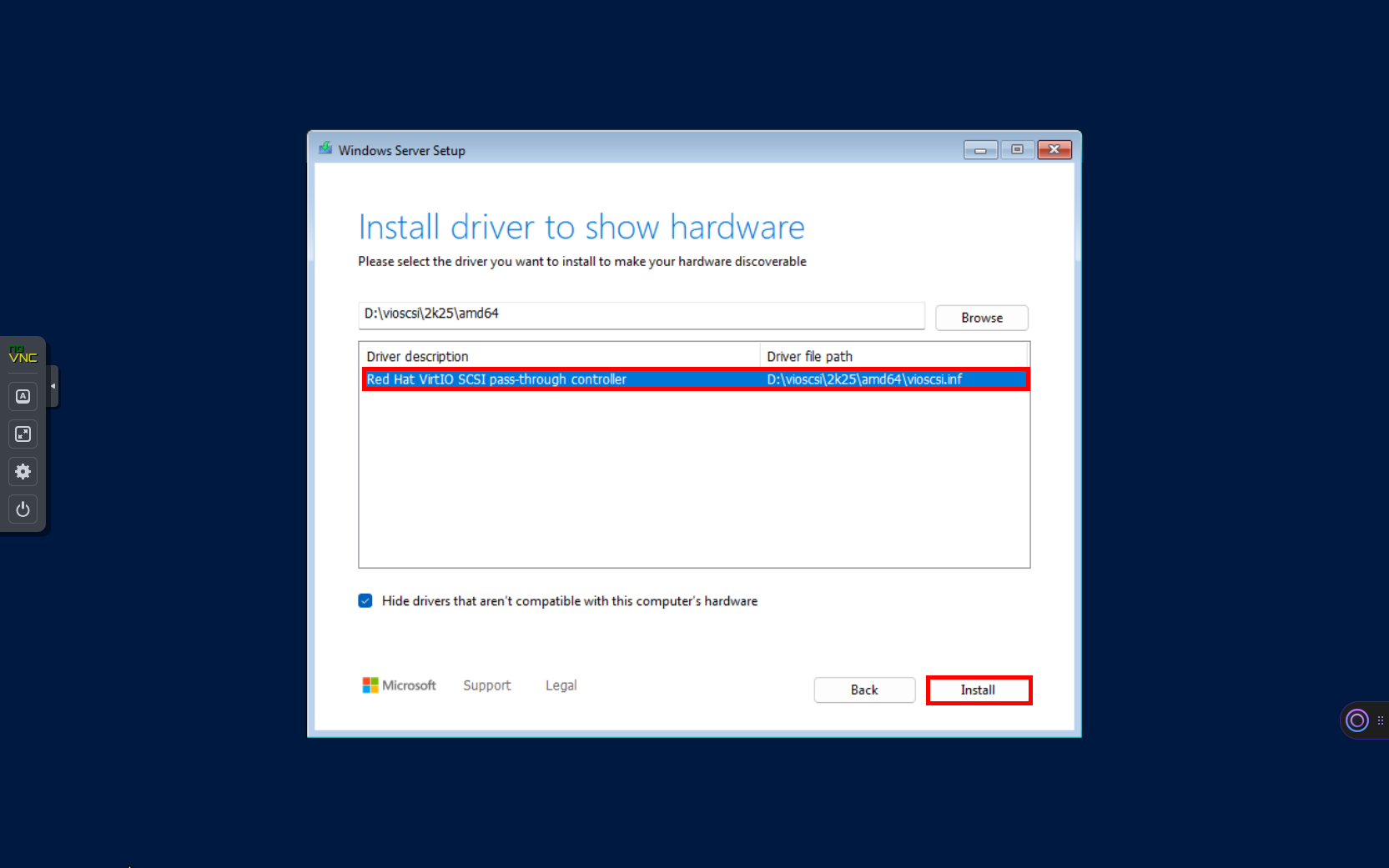
- Select the
Red Hat VirtIO SCSI pass-through controllerdriver, then click Install to load the storage driver:
Windows Post-Installation
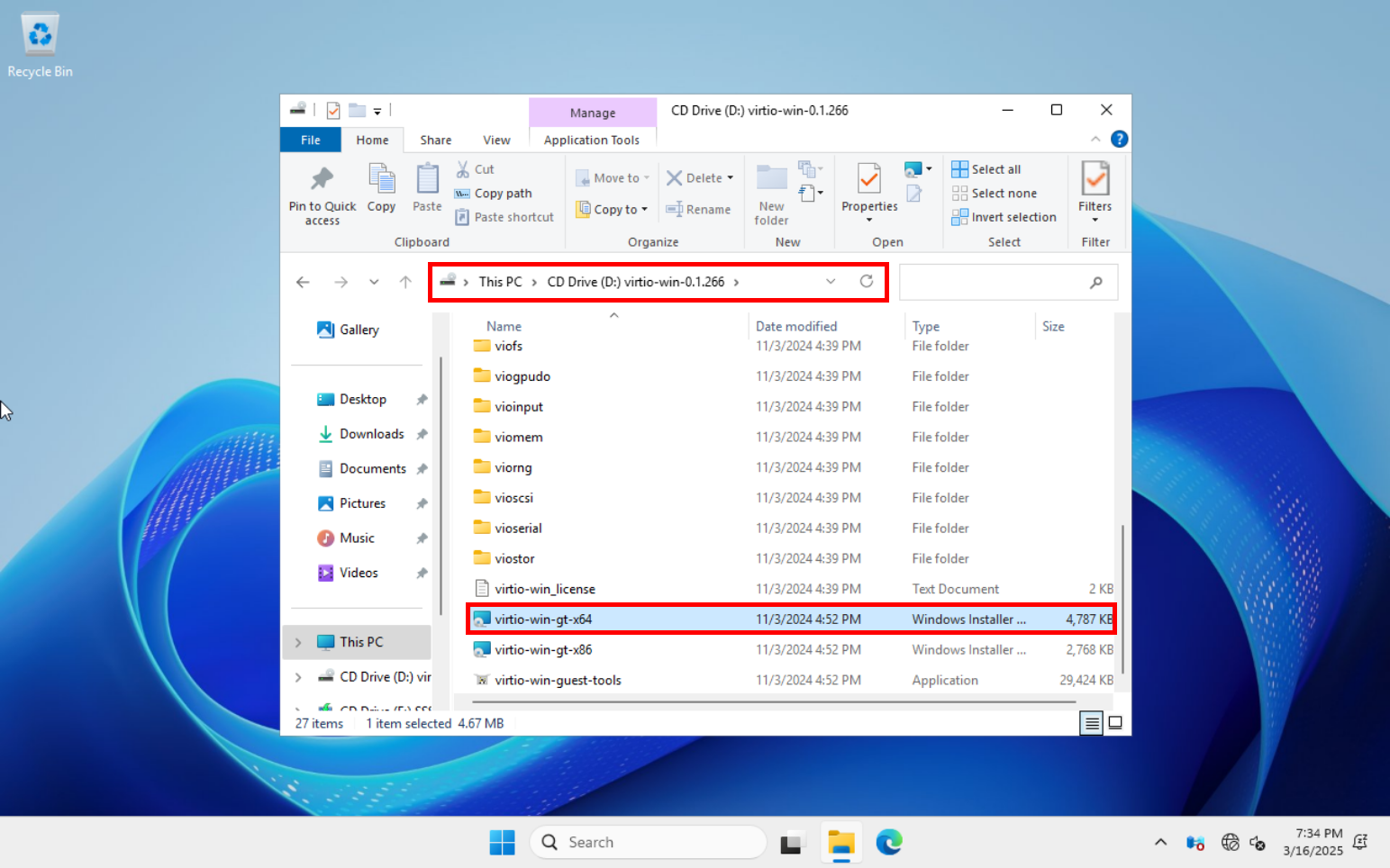
- After the Windows installation is complete, open the attached virtio-win drive and run the
virtio-win-gt-x64installer to install the VirtIO drivers and guest tools:
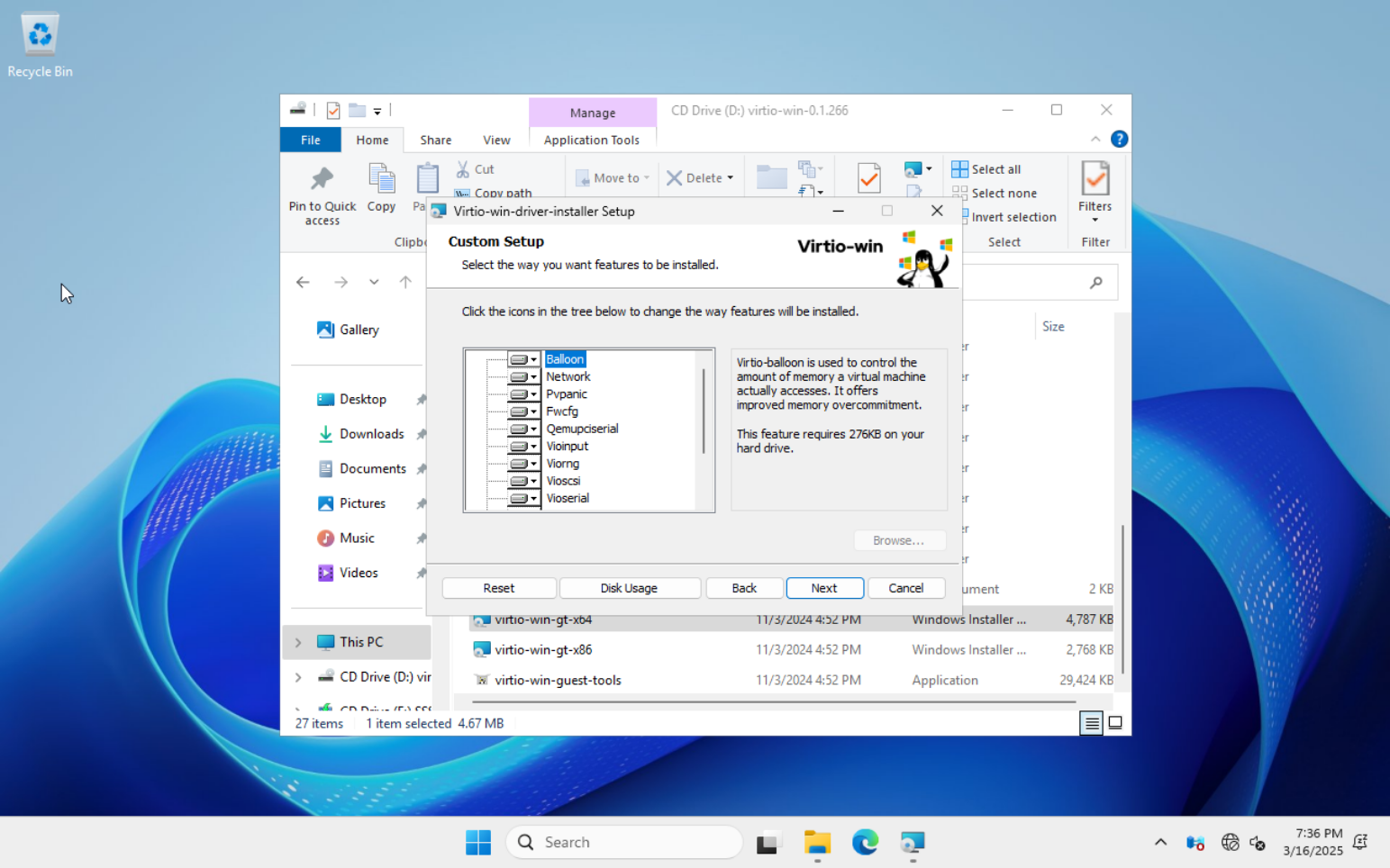
- Keep the default selected VirtIO driver components, then continue with the installation:
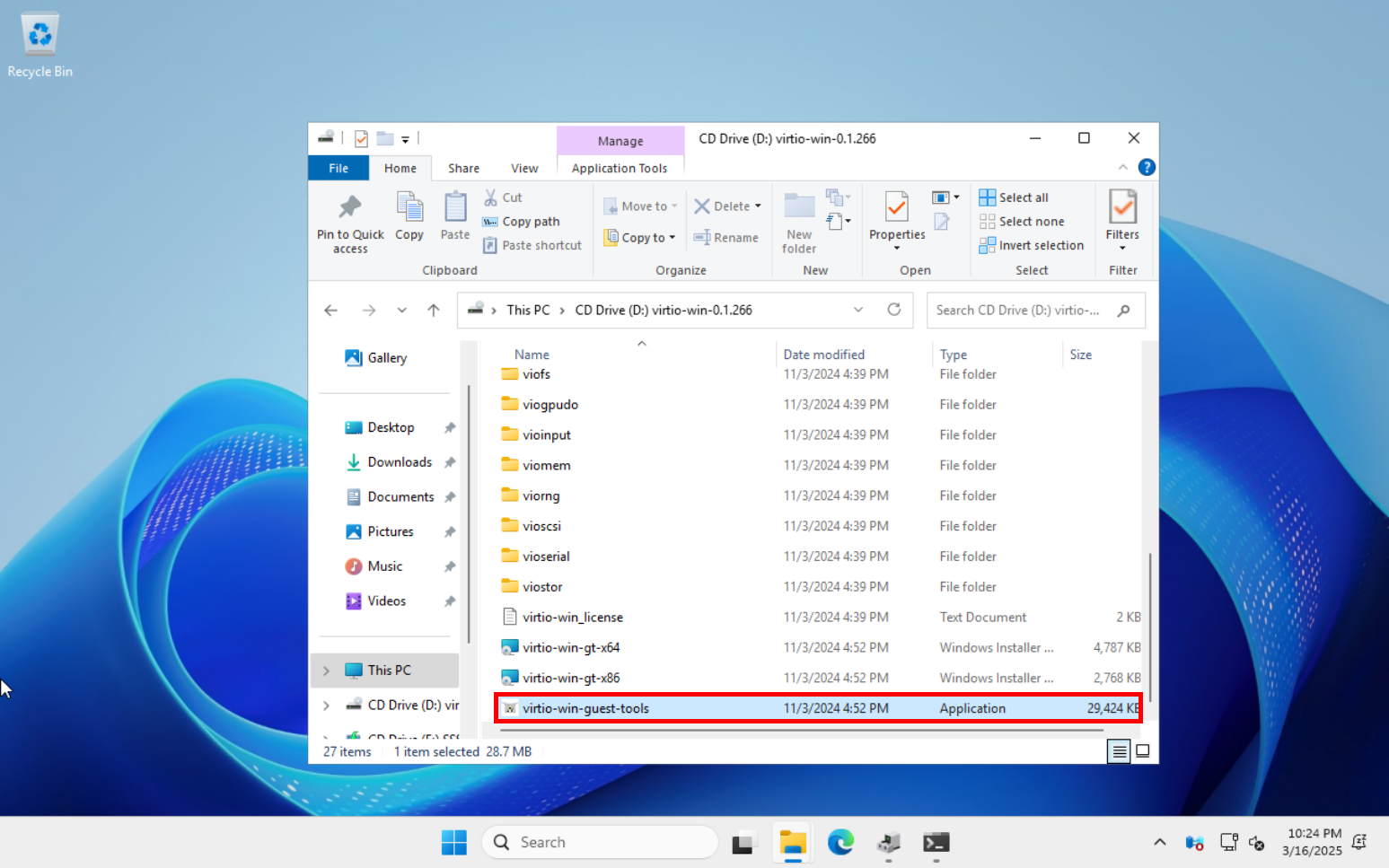
- Then run the
virtio-win-guest-toolsinstaller to install the additional guest tools required for better integration with Proxmox VE, including support for the QEMU Guest Agent. Restart the VM when the installation is complete:
Congratulations, your Windows virtual machine is ready!
GNU/Linux
Creating a Debian Virtual Machine
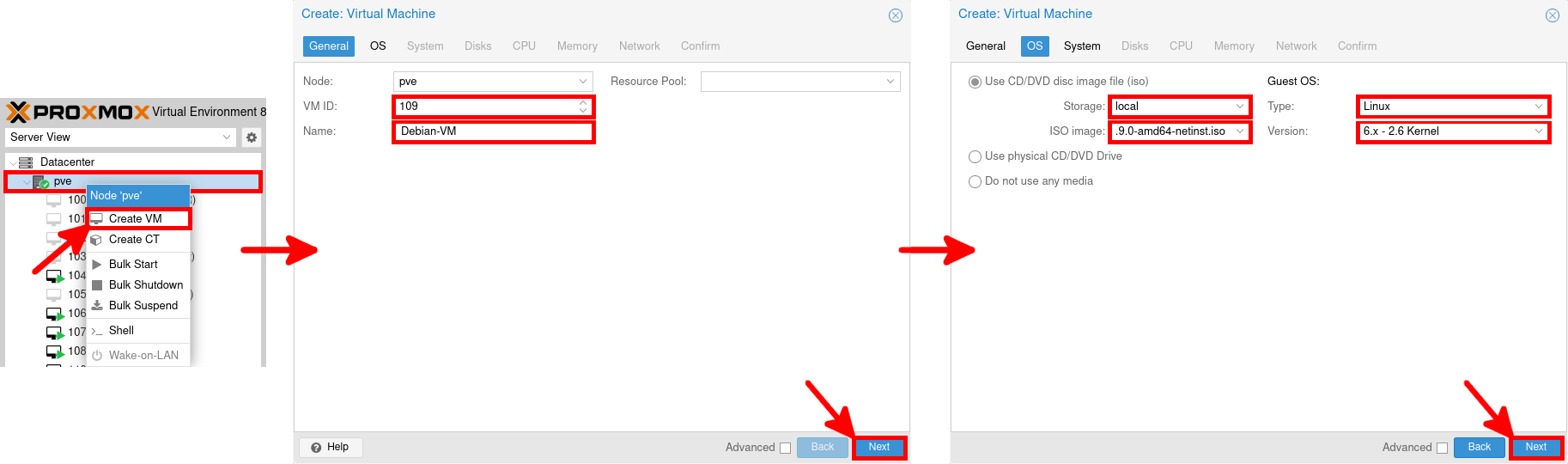
- Right-click on the hypervisor and select Create VM. In the General tab, enter a name for the virtual machine and click Next. In the OS tab, select the previously uploaded Debian ISO image, then set the Guest OS type to Linux:
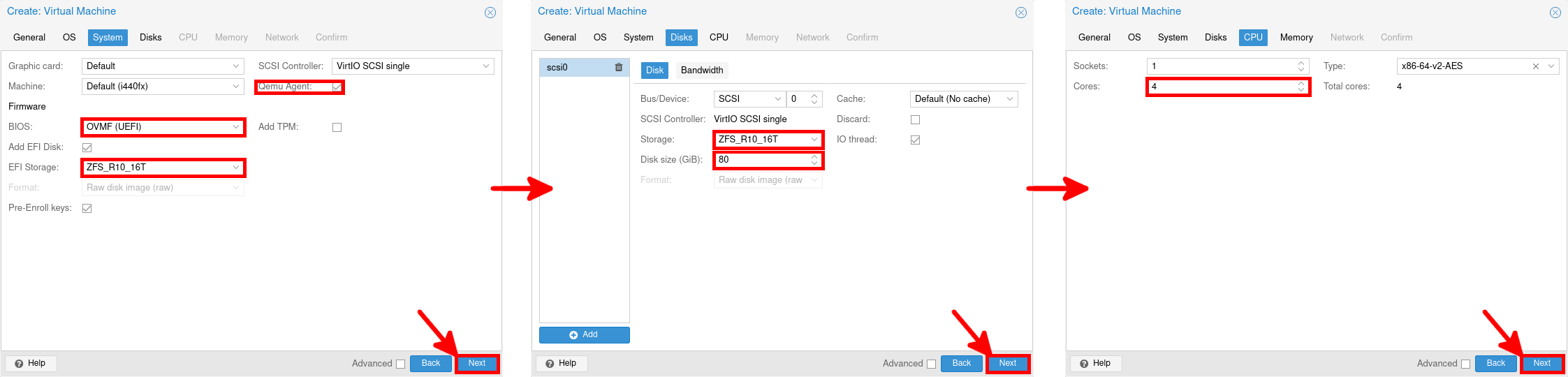
- In the System tab, enable the QEMU Agent, select OVMF (UEFI) firmware, and choose the storage location for the EFI disk. In the Disks tab, select the target storage and set the virtual disk size. Finally, adjust the CPU settings if needed:
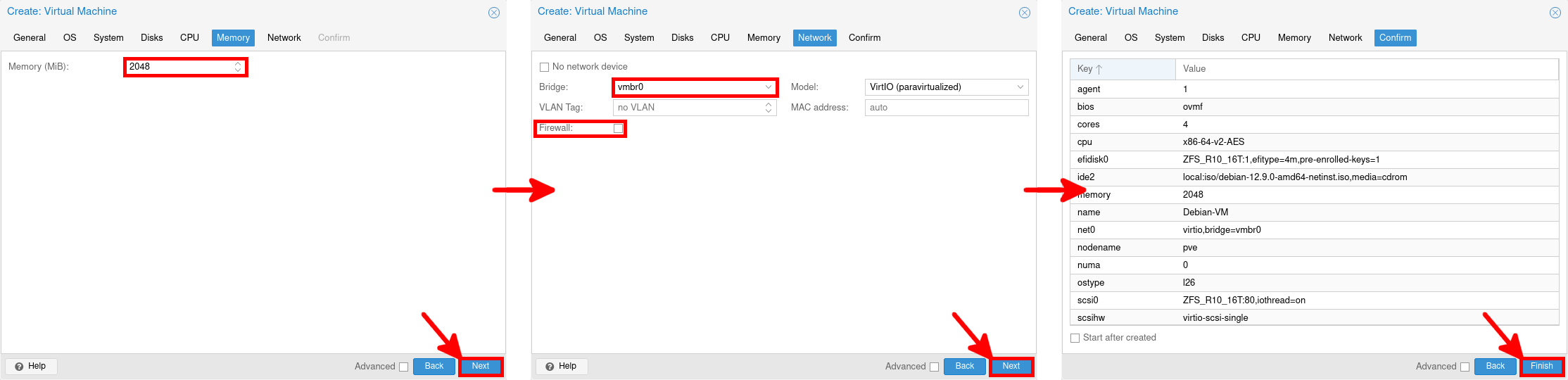
- In the Memory tab, allocate the amount of RAM you want to assign to the virtual machine. In the Network tab, select the target bridge and keep the VirtIO paravirtualized model for better performance. Finally, review the configuration summary and click Finish to create the VM:
Install Debian
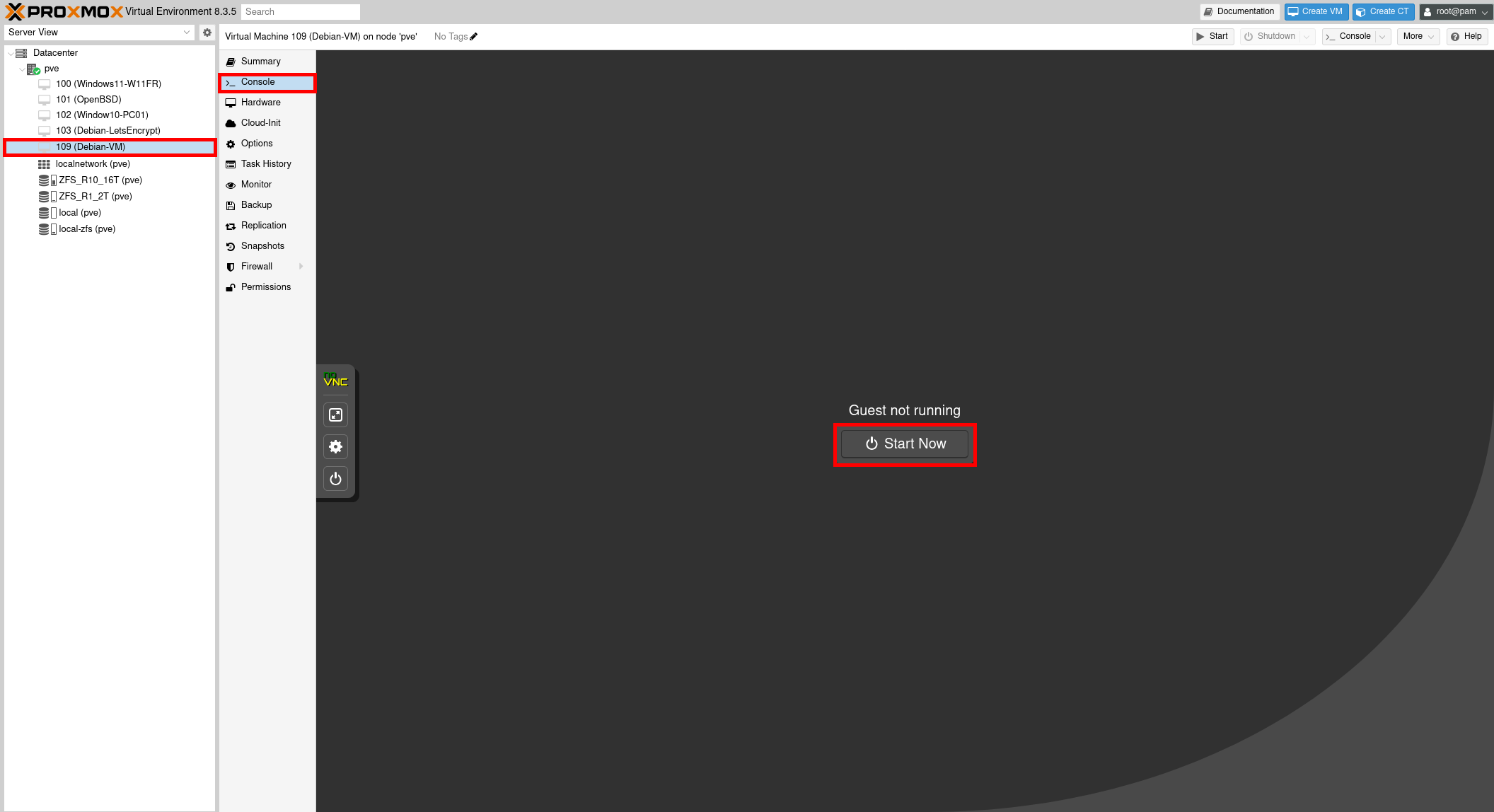
- Once the virtual machine has been created, open the Console tab and click Start Now. The VM should then boot from the attached Debian installation ISO:
Debian Post-Installation
- The Qemu agent should have been installed automatically, but if necessary, here are the commands you need to type to install it:
root@host:~# apt update && apt install qemu-guest-agentroot@host:~# systemctl enable qemu-guest-agentroot@host:~# systemctl restart qemu-guest-agent